
120 lines
6.2 KiB
Markdown
120 lines
6.2 KiB
Markdown
# node-red-contrib-mi-devices
|
|
|
|
This module contains the following nodes to provide easy integration of the Xiaomi devices into node-red.
|
|
This module is a fork of [Harald Rietman module, node-red-contrib-xiaomi-devices](https://github.com/hrietman/node-red-contrib-xiaomi-devices)
|
|
|
|
The following devices are currently supported:
|
|
|
|
* Temperature/humidity sensor
|
|
* Aqara temperature/humidity/pressure sensor
|
|
* Magnet switch
|
|
* Aqara window/door sensor
|
|
* Button switch
|
|
* Aqara smart wireless switch
|
|
* Motion sensor
|
|
* Power plug (zigbee)
|
|
* Power plug (wifi)
|
|
* Yeelight White (mono)
|
|
* Yeelight RGB
|
|
|
|
## Preperation
|
|
|
|
To interact with the gateway, you need to enable the developer mode, aka LAN mode in the gateway (see below).
|
|
|
|
To control the Wifi-Plug, extensive use is made of the miio library created by [Andreas Holstenson](https://github.com/aholstenson/miio).
|
|
Make sure to check his page for compatible devices.
|
|
|
|
## Install
|
|
|
|
```
|
|
npm install node-red-contrib-mi-devices
|
|
```
|
|
|
|
## Usage
|
|
|
|
From the Xiaomi configurator screen add your different devices by selecting the type of device and a readable description. The readable discription is used on the different edit screen of the nodes to easily select the device you associate to the node.
|
|
|
|
Note that the Wifi power plug is not configured through the configurator as it is not connected to the gateway.
|
|
|
|
The Xiaomi configurator screen with ease of use to configure your different devices.
|
|
|
|

|
|
|
|
Tip: use the configurator from the side-panel (hamburger menu, configuration nodes) to manage your devices. Node-red doesn't update underlying edit screens if the configuration panel is opened / closed from the edit node screen. (If you do, you need to first close the edit node screen and reopen it by double-clicking the node you want to edit the properties for.)
|
|
|
|
### How to use different nodes
|
|
|
|
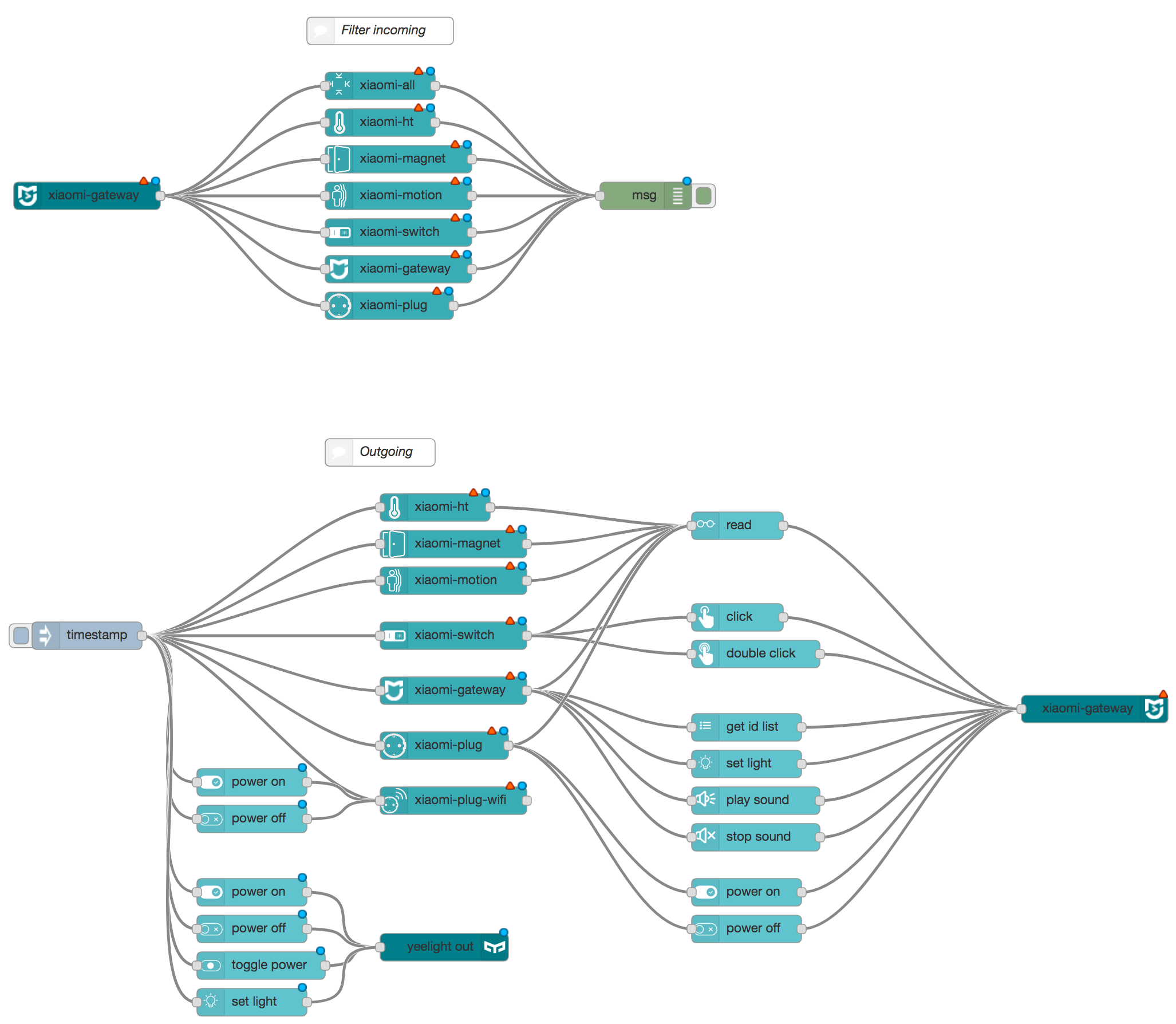
Here an example of how to use the different nodes (screenshot of [importable flows-overview.json](flows-overview.json?raw=true "Mi Devices overview")):
|
|
|
|
|
|
|
|
### Sample flows
|
|
|
|
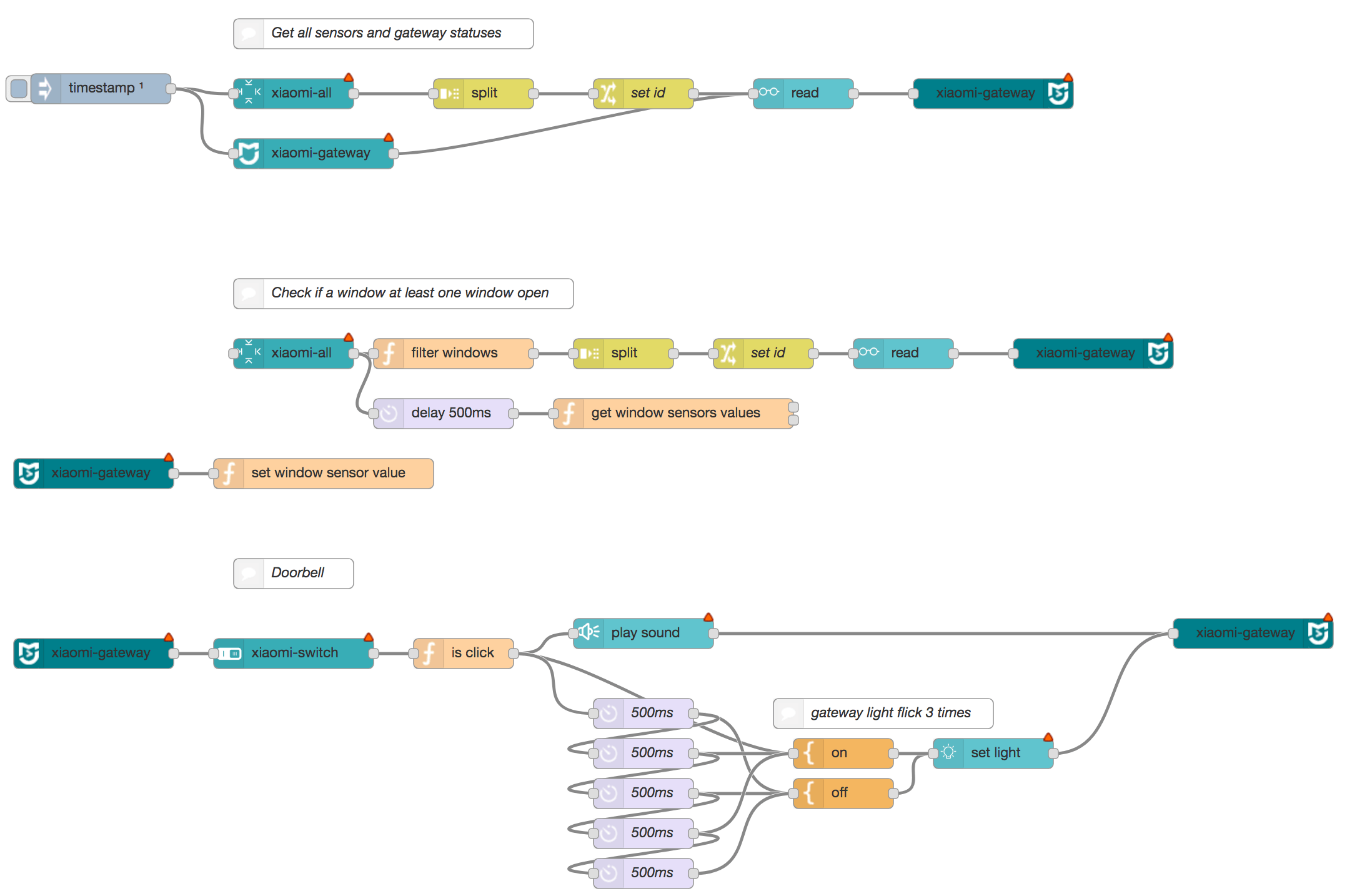
Here are different flow (screenshot of [importable flows-sample.json](flows-sample.json?raw=true "Different flows using Mi Devices")):
|
|
|
|
|
|
### Interpreting payload.msg
|
|
|
|
The following is an (incomplete) summary of interpreting payload.msg output from the mi-devices nodes
|
|
#### payload.msg.cmd
|
|
When utilising a gateway, device and debug node, you will see the following property of msg.payload.cmd along with a number of possible values:
|
|
* cmd: 'read' - this is the result generated from a flow that utilises the 'read' node. (see 'outgoing' example above. The result of the 'xiaomi-ht' device connected to the 'read' node, will be output from the xiaomi-gateway incoming node, with a property of 'cmd' and value 'read'). Using a read node is the best way to obtain up to date values.
|
|
* cmd: 'report' - is a result of a direct change in status of a device, for example the opening or closing of a magnet sensor, or a change in temperature.
|
|
* cmd: 'heartbeat' - If the device is the gateway, then a heartbeat cmd will be sent every 10 seconds. If it is a sub-device, then plug-in devices (such as sockets and aircon helpers) will send a heartbeat every 10 minutes, other devices that sleep (e.g. zigbee devices), will send a heartbeat message every 60 minutes. If a device's current status is lost, a heartbeat message may be used to remedy the issue.
|
|
* cmd 'write' - used to change the state of a Smart Socket
|
|
|
|
|
|
|
|
## Enable LAN mode
|
|
|
|
### Gateway
|
|
|
|
1. Install MiHome App
|
|
2. Make sure you set your region to: Mainland China under settings -> Locale - required for the moment.
|
|
Mainland China and language can set on English.
|
|
3. Select your Gateway in Mi Home
|
|
4. Then click the 3 dots at the top right of the screen
|
|
5. Then click on about
|
|
6. Tap under Tutorial menu (on the blank part) repeatedly
|
|
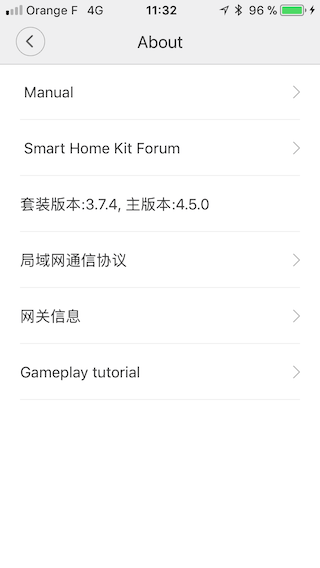
7. You should see now 3 extra options listed in Chinese until you did now enable the developer mode (like the first screenshot below, if not try all steps again!)
|
|
8. Choose the second new option
|
|
9. Then tap the first toggle switch to enable LAN functions. Note down the password (`A4D81977ED8A4177` in the second screenshot)
|
|
10. Make sure you hit the OK button (to the right of the cancel button) to save your changes
|
|
|
|
If you change here something, you lose your password!
|
|
|
|
|
|

|
|
|
|
### Yeelight
|
|
|
|
1. Install Yeelight App
|
|
2. Select your Yeelight in Mi Home
|
|
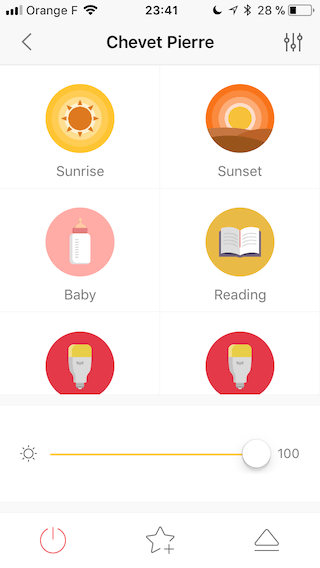
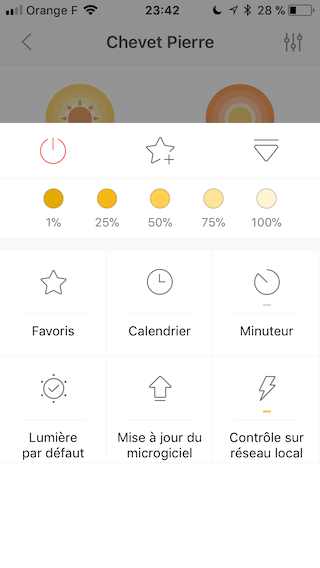
3. Then click the third icon at the bottom of the screen
|
|
4. Then click on the lightning icon "LAN control"
|
|
5. In the new panel, toggle the switch to "on"
|
|
|
|
The lightning icon should be underline un yellow.
|
|
|
|
|
|
|
|
|
|
## Sources
|
|
|
|
* [Harald Rietman node-red module](https://github.com/hrietman/node-red-contrib-xiaomi-devices)
|
|
* [Domoticz Instructions](https://www.domoticz.com/wiki/Xiaomi_Gateway_(Aqara))
|
|
* [louisZl Gateway Local API](https://github.com/louisZL/lumi-gateway-local-api)
|
|
* [Domoticz Gateway Code](https://github.com/domoticz/domoticz/blob/development/hardware/XiaomiGateway.cpp)
|
|
* [Node-red UDP nodes](https://github.com/node-red/node-red/blob/master/nodes/core/io/32-udp.js)
|
|
* [Yeelight specs](http://www.yeelight.com/download/Yeelight_Inter-Operation_Spec.pdf)
|
|
|
|
## Credits
|
|
|
|
* [Switch icons by Setyo Ari Wibowo](https://thenounproject.com/seochan.art/)
|
|
* ["All" icon by Fatahillah](https://thenounproject.com/fatahillah/)
|
|
* [Bulb icon by Mello](https://thenounproject.com/stonuiiuntk/)
|
|
* [Glasses icon by Agrahara](https://thenounproject.com/agrahara4/)
|
|
* [Volume icons by krishna](https://thenounproject.com/krishanayuga/)
|
|
* [List icon by Landan Lloyd](https://thenounproject.com/landan/)
|
|
* [Clicks icons by Adrien Coquet](https://thenounproject.com/coquet_adrien/)
|